Available on the Mac App Store

Everything you copy. At the edge of your screen.

Move the cursor to the edge of your screen. A panel opens: your last screenshots on top, everything you copied underneath. No Dock icon, no window in the way: a small icon in the menu bar, and the edge of your screen. That is all the room SmartClipr takes.

Download on the Mac App Store → See the panel ↓
Free · macOS 14 Sonoma+ · Apple Silicon & Intel · 11 languages · fully local
The panel

It waits at the edge. It takes no room.

No window to tidy away, no extra icon. The panel appears when the cursor touches the edge you chose, and withdraws the moment it leaves.
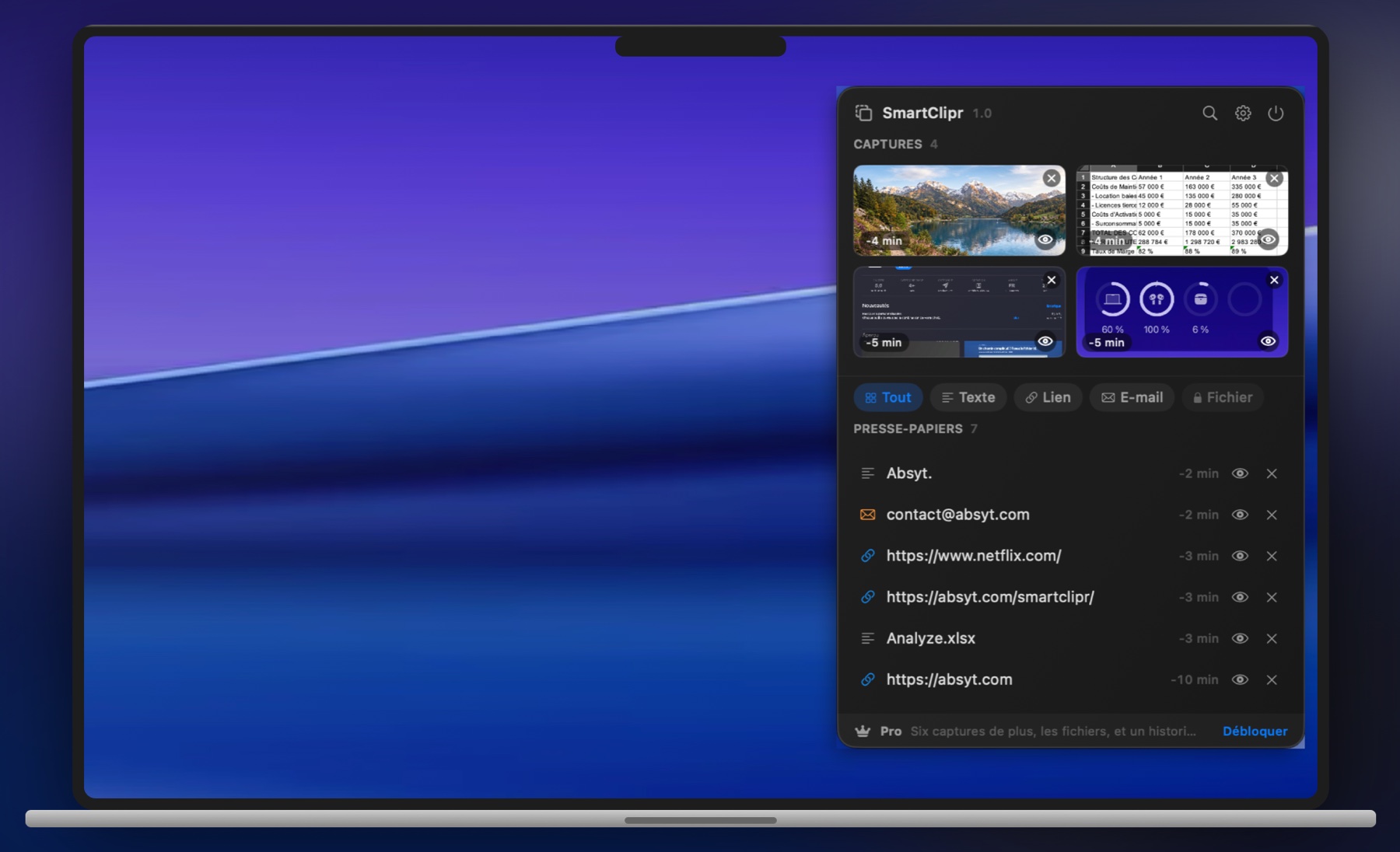
SmartClipr: your screenshots and your copies, at the edge of your screen.

The panel open on the right edge: screenshots on top, clipboard underneath.

Your screenshots
Recognised on their own, as soon as macOS saves them.
Your copies
Sorted by kind, filtered with one click.
One click
The item goes back on the clipboard, ready to paste.
What it keeps

Your clipboard, with a memory.

Copying stays copying. SmartClipr handles the rest.

🖼️ Your screenshots SmartClipr recognises the screenshots macOS saves and brings them to the top of the panel. One click puts one back on the clipboard.
📂 Sorted by kind Text, links, email addresses, files: every copy goes to its own kind, and one filter shows nothing else.
👁️ The full preview A long text does not fit on one line. The eye opens the preview, selectable, without leaving the panel.
🔍Pro for screenshots Search Search everything you have copied. And, with Pro, inside the text of your screenshots, read on your Mac.
✋Pro Drag and drop Grab an item from the panel and drop it into any app.
📌Pro Pinning What you pin never disappears, whatever happens to the rest of the history.
Privacy

Nothing leaves your Mac.

SmartClipr makes no network requests. No account, no analytics, no server. Your copies never leave your Mac, and you can check that with any firewall.

No network The app never opens a single connection. It behaves identically offline.
No account Nothing to create, nothing to remember. You install it, it works.
Excluded apps You name the apps whose copies must never be recorded: your password manager, your bank. That protection is in the free version. It is not for sale.
Erase, for real One button empties the whole history, immediately, with no copy kept elsewhere.
Yours to arrange

Set the way you want it.

The panel sits where you want, looks how you want, and speaks your language.

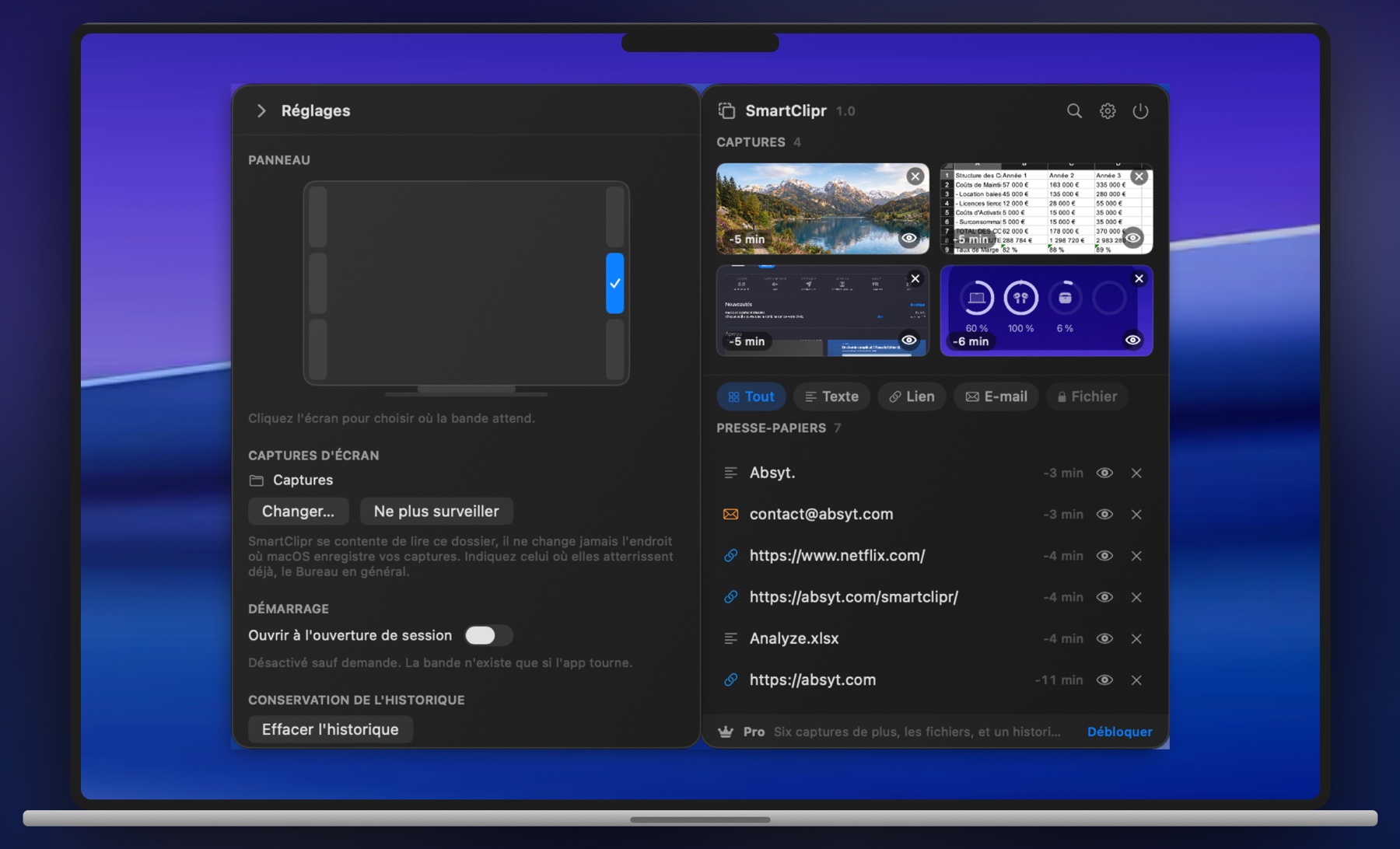
Settings open glued to the panel, at the same height.

Settings open glued to the panel, at the same height.

The edge and the height You pick them on a drawing of your screen: left or right, top, middle or bottom.
Light, dark or system The panel follows your Mac, or the appearance you give it.
Eleven languages English, French, German, Spanish, Italian, Brazilian Portuguese, Japanese, Simplified Chinese, Turkish, Polish, Dutch.
At login Off by default. You turn it on, if you want it.
The screenshot folder You tell SmartClipr where macOS drops your screenshots. It only reads that folder, and never changes the setting.
How long history is kept From a few days to no expiry at all with Pro.
Free and Pro

Useful without paying. Complete if you want.

The free version is not a demo: it is the app, with quotas.

Free
✓4 screenshots
✓10 items in the history
✓Text, links and email addresses
✓The full, selectable preview
✓Excluded apps
✓Every setting, all 11 languages
👑 Pro
One purchase, no subscription
✓10 screenshots instead of 4
✓Search inside the text of your screenshots, read on your Mac
✓Pasted images and copied files kept
✓History with no cap and no expiry
✓Drag an item into any app
✓Pin what must never disappear

What protects your privacy stays in the free version. Protection is not something to sell.

FAQ

Fair questions.

What people have already asked.

How do you open the panel? +

You move the cursor against the edge of the screen, wherever you decided it waits, or click the SmartClipr icon in the menu bar. Nothing to remember, no shortcut to learn. The delay before it opens is adjustable, and the edge can be switched off if you would rather open the panel from the menu bar only. It withdraws as soon as the cursor leaves, unless you pinned it open.

Is there a menu bar icon? +

Yes, a small one. It opens the panel and gives access to Settings, the About window and Quit. No Dock icon, though: SmartClipr stays out of the way. You can also quit it with the power button at the top right of the panel.

Does SmartClipr record my passwords? +

macOS marks confidential copies, and those are never recorded. Beyond that, you name the apps to ignore entirely: your password manager, your bank, whatever you like. That is in the free version.

Which versions of macOS are supported? +

macOS 14 Sonoma and later, on Apple Silicon and Intel Macs alike.

Does it need any permission? +

One, and only if you want the screenshots: you point it at the folder where macOS saves them. SmartClipr only reads it. Without that folder, the clipboard still works.

What happens to the history when I quit? +

It stays on your Mac, in the app's own private space, and it is there again next time you launch. One button erases it entirely whenever you want.

How much does it cost? +

The app is free. Pro is a single in-app purchase: you pay once, it is yours, updates included. No subscription, no renewal.

Will it be translated into my language? +

Probably: 11 languages are already there. If yours is missing, write to me and I will add it.

The clipboard is the tool you use a hundred times a day and never notice. SmartClipr notices it for you.
Mathis, Absyt
Contact

A question, an idea?

The app is out, and your remarks can still shape it. Write to me, I read everything.

contact@absyt.com
Support ← Back to Absyt